
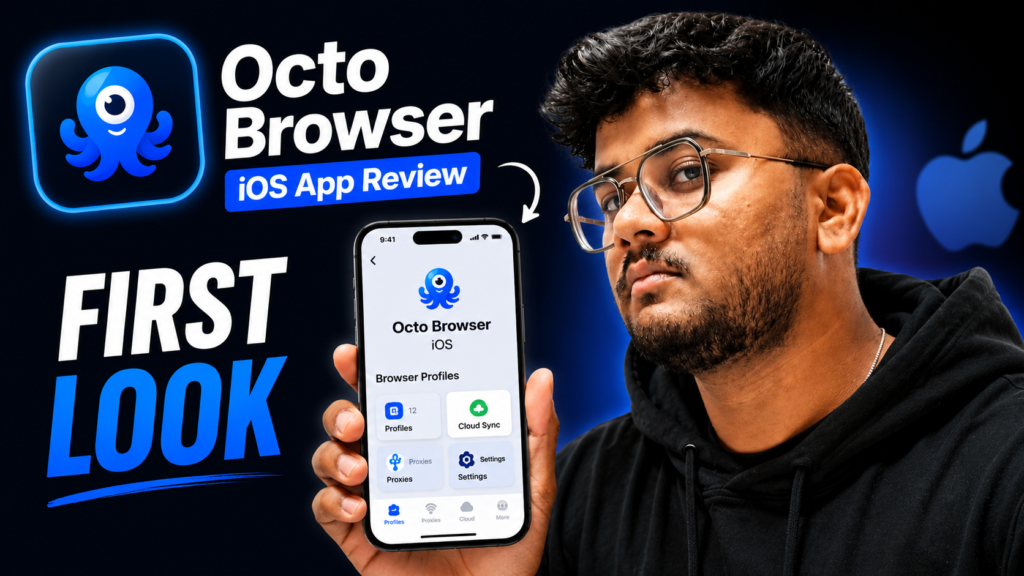
The launch of Octo Browser on iOS has started attracting attention from users who manage multiple accounts, browser profiles, and proxy-based workflows. Until recently, most anti-detect browsers focused mainly on desktop platforms, but now many users are curious about the new Octo Browser iOS app and whether it’s actually useful on iPhone and iPad.
In this detailed Octo Browser iOS review, we’ll explain what the app does, how browser profiles work on iPhone, proxy setup options, cloud sync features, limitations, and whether the iOS version is worth using in 2026.
This article focuses on practical usability and workflow—not hype—so users can understand what the app currently offers and where it still feels limited compared to desktop anti-detect browsers.
Table of Contents
ToggleWhat Is Octo Browser?
Octo Browser is an anti-detect browser and browser profile management tool designed for users who need separate browser environments.
Platforms like Octo Browser are commonly used for:
- Multi-account management
- Testing browser environments
- Proxy-based workflows
- Team collaboration
The core idea behind browser profile systems is simple:
👉 Each browser profile can operate like a separate device/browser environment.
Why the iOS Version Matters
Most anti-detect browsers historically focused on:
- Windows
- macOS
The arrival of Octo Browser for iPhone and iPad is important because mobile workflows are becoming increasingly common.
Users now want:
- Mobile browser profile management
- Cloud synchronization
- Proxy setup directly on iPhone
- Access to browser sessions while traveling
This is where the Octo Browser iOS app attempts to fit in.
Octo Browser iOS: First Impressions
The iPhone version focuses more on:
- Browser profile access
- Session management
- Cloud syncing
- Mobile workflow convenience
rather than full desktop-level anti-detect functionality.
Initial Experience
The interface feels:
✔ Clean
✔ Minimal
✔ Mobile-friendly
Navigation is simpler compared to desktop browser management tools.
Octo Browser iPhone Features
1. Browser Profile Access
One of the main features is access to:
- Existing browser profiles
- Synced sessions
- Managed environments
This helps users continue workflows across devices.
2. Cloud Sync Browser System
A major advantage is:
👉 Cloud synchronization
This allows:
- Profiles to sync between desktop and mobile
- Faster workflow switching
- Easier remote management
For users already using Octo Browser on desktop, this integration is likely the biggest reason to try the iOS app.
3. Proxy Support & Settings
Many users search specifically for:
- Octo Browser proxy settings
- Proxy setup on iPhone
The iOS version appears to support proxy-related workflows, although mobile limitations mean it may not offer the same flexibility as desktop systems.
4. Mobile Workflow Convenience
The app is useful for:
- Quick profile access
- Checking sessions remotely
- Managing browser activity while away from the desktop
Octo Browser iOS vs Desktop Version
This is important to understand.
Desktop Version
✔ Full profile control
✔ Advanced browser fingerprinting tools
✔ More configuration options
iOS Version
✔ Lightweight mobile access
✔ Cloud sync convenience
✔ Easier remote management
❌ More limited customisation compared to desktop
👉 The mobile app currently feels more like a companion tool rather than a full desktop replacement.
How to Use Octo Browser on iPhone
Step 1: Install the App
Download the iOS version from the official source.
👉 Download Here: CLICK HERE
Step 2: Login to Your Account
Use your Octo Browser credentials.
Step 3: Access Synced Profiles
Your existing browser profiles should appear if cloud sync is enabled.
Step 4: Configure Proxy Settings (Optional)
Depending on your workflow, you may configure:
- Proxy settings
- Session preferences
- Browser profile access
Who Is the Octo Browser iOS App For?
This app may be useful for:
- Users already using Octo Browser desktop
- Teams managing browser sessions
- Mobile-focused workflows
- Users needing remote browser profile access
Who May Not Need It?
Probably unnecessary for:
- Casual Safari/Chrome users
- Users expecting full desktop anti-detect functionality on mobile
- Beginners unfamiliar with browser profile systems
Octo Browser vs GoLogin
Many users compare GoLogin with Octo Browser.
General Differences
Octo Browser
- Strong focus on profile management
- Team workflows
- Enterprise-style tools
GoLogin
- Popular beginner anti-detect option
- Simpler onboarding experience
👉 Which one is better depends heavily on workflow needs.
Important Reality Check
It’s important not to overhype mobile anti-detect apps.
The iOS version currently appears best suited for:
✔ Profile access
✔ Session management
✔ Workflow continuation
rather than:
❌ Full desktop replacement
Mobile operating system restrictions naturally limit certain advanced browser-level controls.
🚀 Download Octo Browser iOS
If you want to test the app yourself:
👉 Download the iOS version here: CLICK HERE
Pros and Cons of Octo Browser iOS
Pros
✔ Mobile browser profile access
✔ Cloud sync support
✔ Cleaner mobile workflow
✔ Useful companion app
Cons
❌ Limited compared to desktop version
❌ Advanced configuration still desktop-focused
❌ May feel unnecessary for casual users
Final Verdict: Is Octo Browser iOS Worth Trying?
This Octo Browser iOS review shows that the app is a useful addition for users already involved in browser profile workflows and cloud-synced environments.
The biggest strengths are:
- Mobile convenience
- Session access
- Cloud synchronization
However, users expecting full desktop-level anti-detect functionality on iPhone should keep expectations realistic.
At its current stage, the app works best as:
✔ A companion workflow tool
❌ Not a complete desktop replacement
About the Author
Piyush Kumar Singh (Digital Piyush) shares practical insights on online tools, browser platforms, AI software, and digital workflows. His goal is to help users understand technology platforms with realistic and experience-focused explanations.